

Visual schedule app for Fire tablet: setup guide
Visual Schedule Board is a picture-routine app for Amazon Fire tablets. This guide covers installing it, building a first routine and looking after your data. No account is needed, and the app works without internet.
1. Install it
Open the Appstore on your Fire tablet, search for Visual Schedule Board and tap Get. The Appstore page shows whether your tablet is supported. The app is made for Fire tablets and is not available for Kindle e-readers.
2. Start a routine
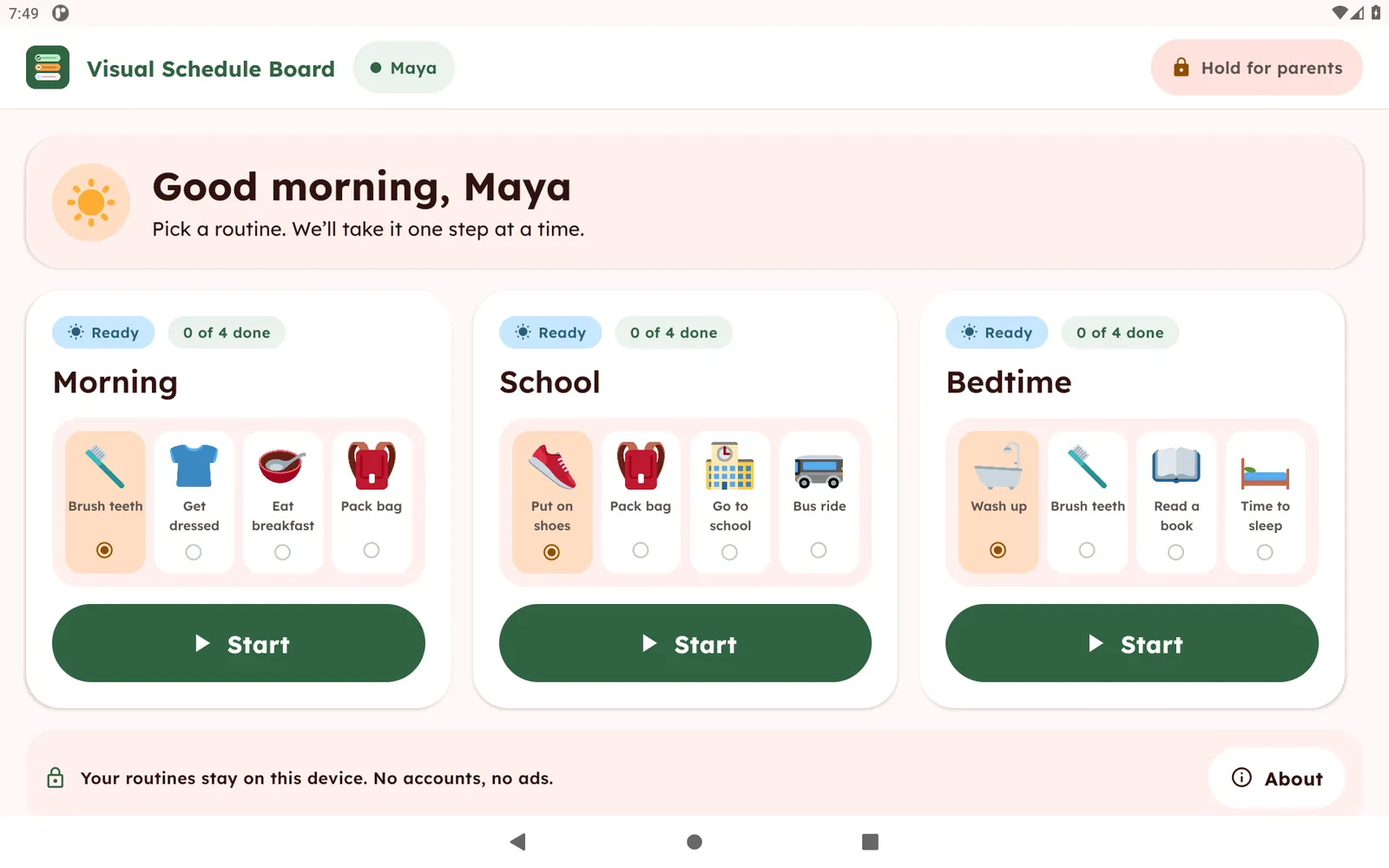
The app opens on the home screen with a sample profile and routines. Tap Start on a routine to see the first step. The child taps the step when it is done. Tapping a finished step again undoes it.
3. Open the parent area
Press and hold Hold for parents for two seconds, then answer the multiplication question with the on-screen keypad. This keeps editing away from small fingers.
4. Build your own routine
Add a step, name it, and pick one of the 74 built-in pictures or use a photo from the camera or gallery. Set an optional quiet timer, then move steps up or down to put them in order.
5. Add more children
Each child gets a profile with their own routines. The app is free for 1 child profile and 2 routines. A one-time unlock through Amazon adds more children and routines, with no subscription.
6. Back up your routines
From the parent area, export everything, including photos, to a single backup file. Import it later on the same tablet or a new one. Uninstalling the app removes the data stored on the tablet, so keep a backup of routines you care about.
Read-aloud and photos
Read-aloud uses a voice already installed on the tablet. If no voice is available, the option is hidden. The camera is optional and only used when you take a photo for a step.
Questions? Email [email protected]. Back to Visual Schedule Board.