

How to Permanently Redact Screenshots on Windows
Drawing black rectangles or using blur tools often fails to erase sensitive text. Here is how modern image formats leak confidential data, and how to verify that pixels are truly destroyed before export.
Why Drawing Black Bars Isn't Safe
When sharing bug reports, API documentation, or customer receipts, team members routinely hide API tokens, email addresses, and credit card numbers. However, traditional methods frequently leave data vulnerable:
- Alpha Transparency & Soft Edges: Markers and highlighter tools in standard markup software often use semi-transparent brushes. Anyone adjusting the exposure, contrast, or levels in an image viewer can easily read the text beneath.
- Recoverable PNG Buffers (Acropalypse): In CVE-2023-28303, cropped or edited PNGs saved by built-in operating system snipping tools left trailing uncompressed data at the end of the file. Attackers developed automated tools to reconstruct the cropped-out areas.
- Layered PDF Retaining Hidden Elements: Merging screenshots into PDFs often stores the black box as an editable vector shape floating over the raster image. Deleting the box in any PDF editor reveals the text below.
True Destructive Redaction: Zeroing the Pixels
To be mathematically secure, an application must perform destructive in-memory pixel eradication. This means modifying the raw raster array in RAM by setting the red, green, blue, and alpha bytes of the covered coordinates to pure solid color (or 0x00) before any encoding, compression, or file writing takes place.
Cropmark was built specifically to solve this problem for developers, engineers, and support teams.
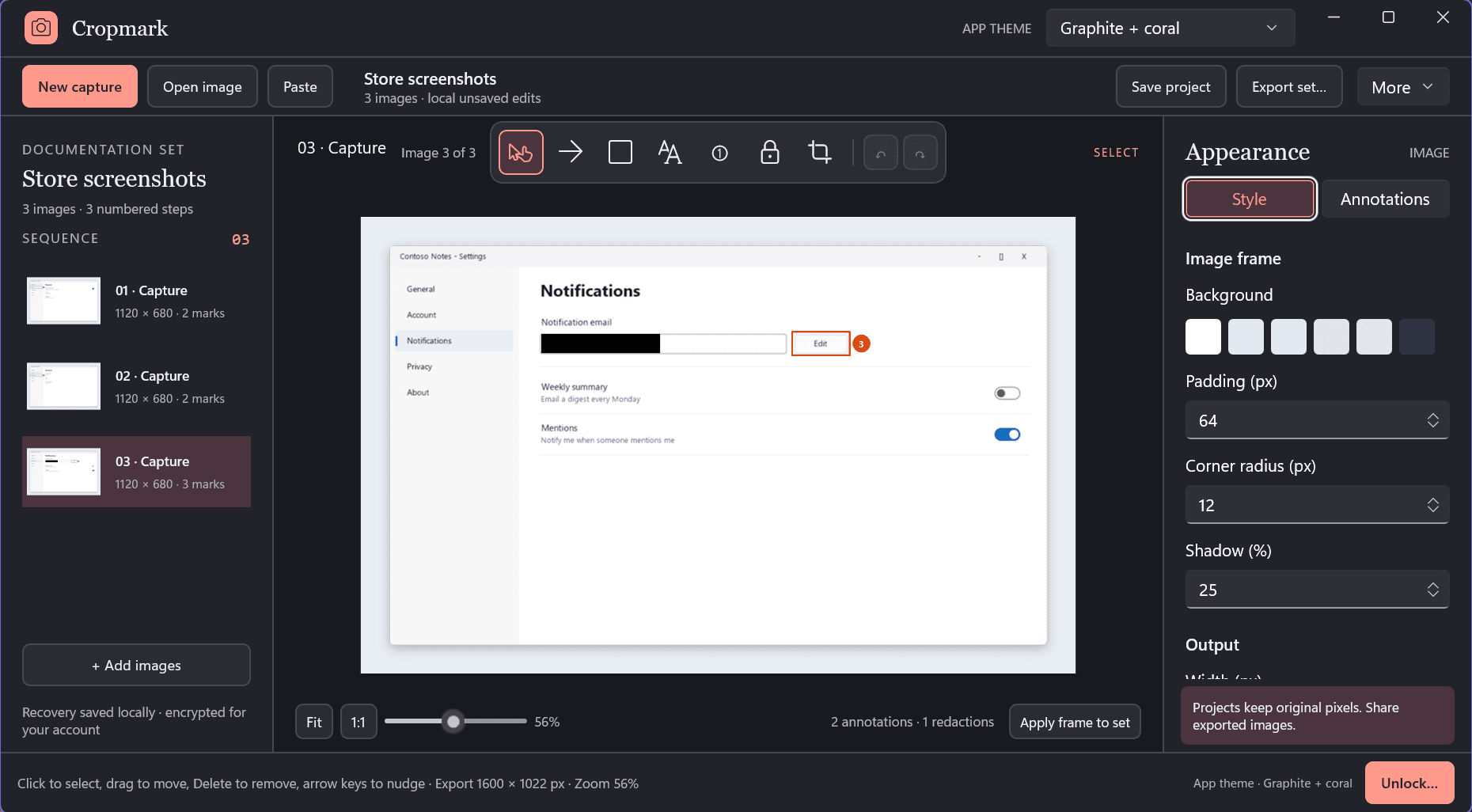
Cropmark solid redaction blocks: pixels are permanently erased from memory before file output.
How to Redact with Cropmark
- Capture Any Window or Screen: Use your global keyboard shortcut or click the floating capture widget to select the desired region.
- Select the Redact Tool: Click the Redaction tool on the toolbar. Drag a box across the sensitive text, password field, or credentials.
- Export with Confidence: Save to PNG, JPEG, or multi-page PDF, or copy to your clipboard. Cropmark inspects the memory buffer prior to saving to guarantee zero pixel recovery.
Zero Watermarks on Free & Pro
Unlike commercial tools that slap obnoxious trial watermarks across your images, Cropmark exports completely clean graphics on both the Free tier and Pro unlock.